Menu

Availability: In stock
Couldn't load pickup availability


AKKO Model: MonsGeek FUN60
Application: Desktop, Laptop, Tablet
Axis Body Brand: AKKO
Backlight Type: MULTICOLOR
Battery: 3000 mAh (for ABS tri-mode version only); 4000 mAh (for Aluminum tri-mode version only))
Battery Included: No
Brand Name: AKKO
Case Color: Black/White
Case Material: ABS (FUN60/FUN60 PRO/FUN60 MAX)/Aluminum (FUN60 ULTRA)
Certification: CE, WEEE
Choice: yes
Connectivity: USB-C wired only / Tri-mode
Full-size keyboard: No
High-concern chemical: None
Interface Type: USB, Bluetooth, Bluetooth / USB
Key Feature: Custom actuation/Mod-Tap/Toggle Key/Dynamic Keystroke/Key remapping/SOCD
Keyboard Standard: 61 keys
Keycap material: PBT plastic
Keycap printing: Double-shot
LED: ARGB (FUN60 PRO/FUN60 MAX/FUN60 ULTRA)
Language: English
Magnetic Switch Cross-Compatibility: Yes (except FUN60 Basic Version)
Mechanical Switches Supported: for TMR Version only
Model: MonsGeek FUN60/FUN60 PRO/FUN60 MAX/FUN60 ULTRA Magnetic Switch Mechanical Keyboard
Mount: Tray-mounted
Operation Style: Mechanical
Origin: Mainland China
Package: Yes
Plate: Aluminum
RT Stabilizer: YES
Software: MonsGeek Driver & Web-Based Driver
Stabilizer: Pre-lubed plate-mounted stabilizer
Style: Standard
Type: Wired
Wrist Support: No
Ordering guidelines: Wired: wired connection only.
Tri-mode: supports wired, 2.4 GHz wireless, and Bluetooth wireless connection modes.
For wireless connectivity, please order the Tri-mode version. Thank you for your cooperation.

It’s time to innovate and create something different.
Highlights:
✔️ Cross-compatible with major magnetic switches (except FUN60 Basic Version)
✔️ Hot-swappable with 5-pin mechanical switches (MagMech compatible, TMR Version only)
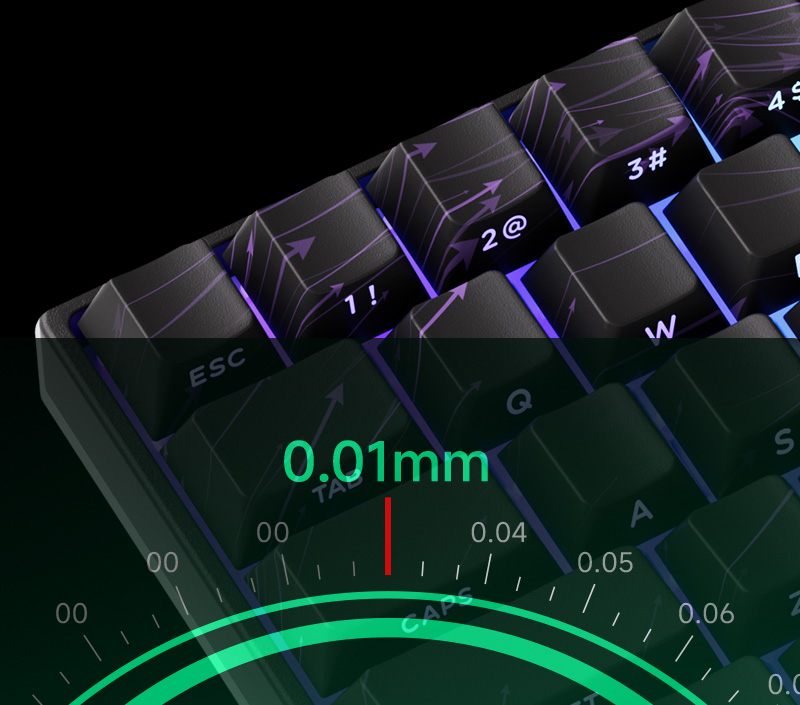
✔️ 0.01 mm RT for superior gaming performance
Note:
Wired mode: only supports USB Type-C wired connection
Tri-mode: supports USB Type-C wired, 2.4 GHz, and Bluetooth wireless connections
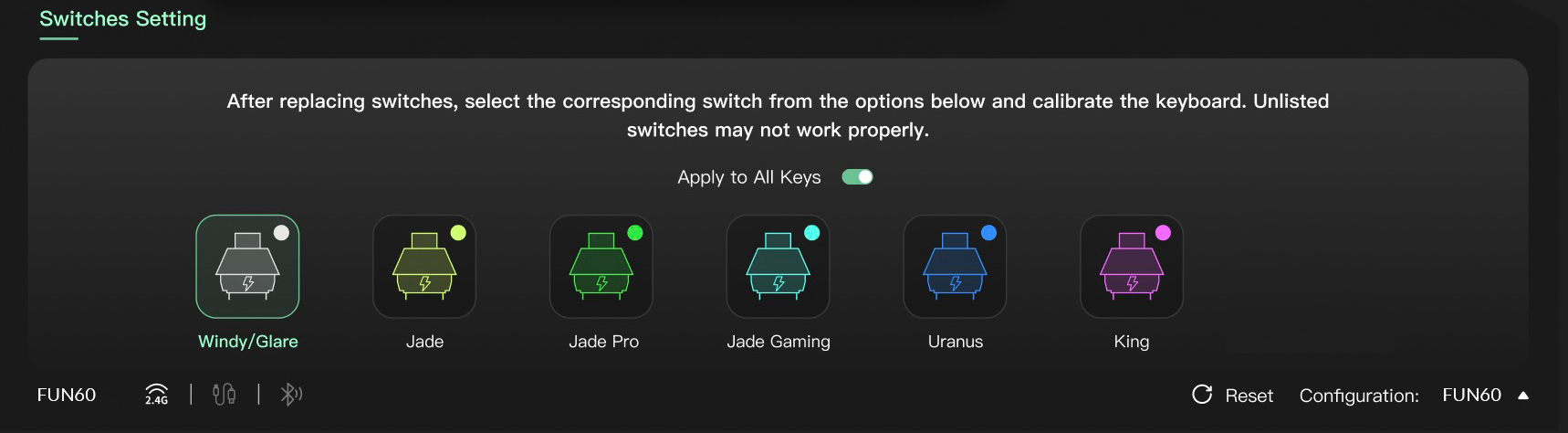
The FUN60 Series (except the FUN60 Basic Version) offers cross-compatibility with 5 third-party magnetic switches. Users can select the corresponding switch from the list in the MonsGeek Driver and easily calibrate the keyboard after replacement. You can also mix and match them across different keys simultaneously.
The FUN60ULTRA TMR Version also supports mechanical switches.
Disclaimer: High-precision switches require tuning and testing with the keyboard. The switches listed are guaranteed to perform with 0.01 mm precision. Other switches may work but may not achieve the claimed accuracy.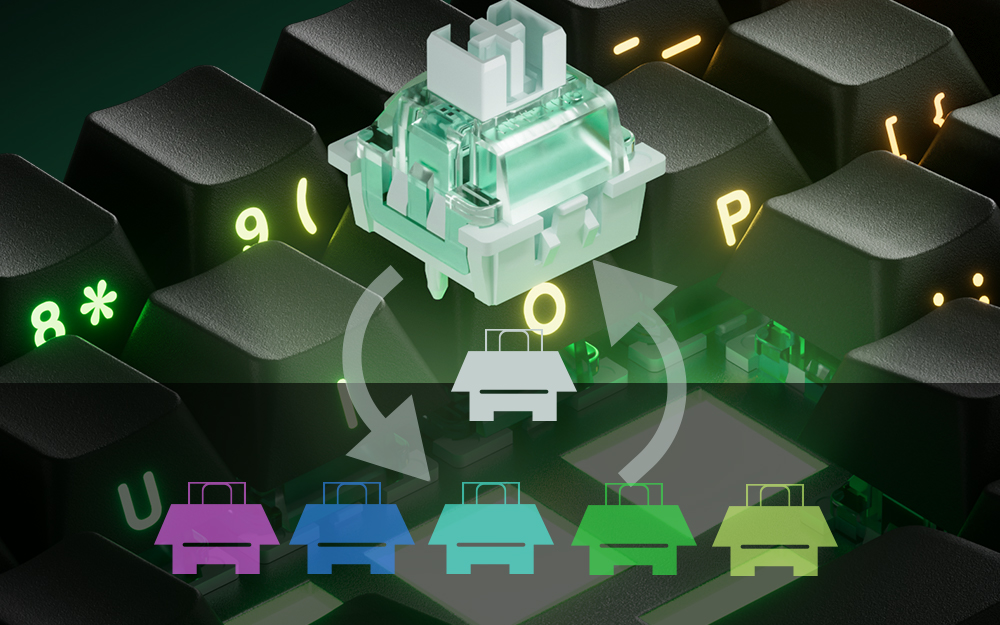
|
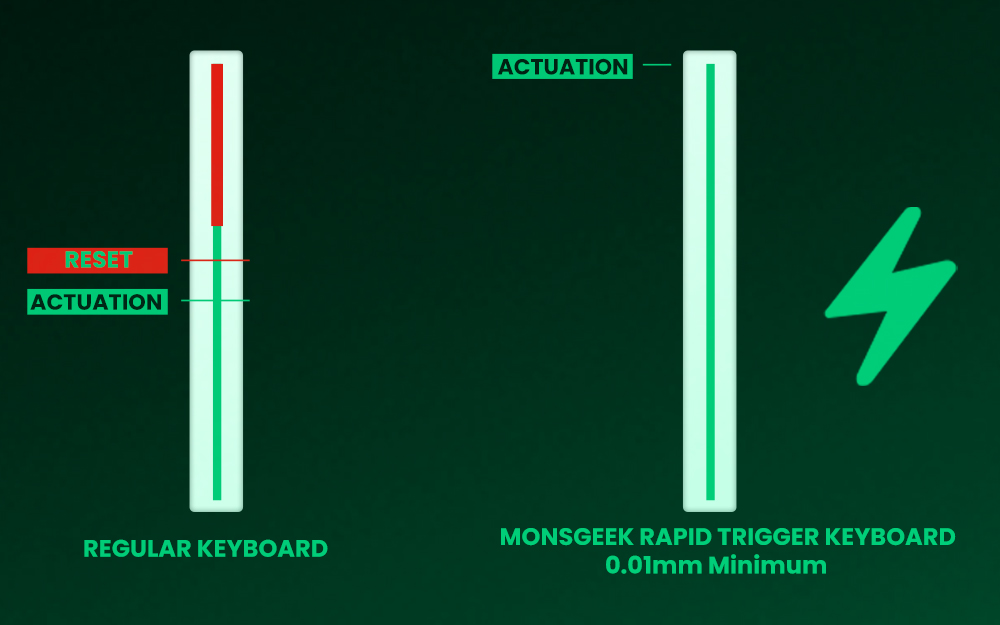
RT0.01mm Achieve ultra-accurate 0.01mm Rapid Trigger and adjustable actuation distance in 0.01mm step. This allows users to fine-tune their typing or gaming experience, ensuring optimal actuation for faster response times with enhanced precision, ideal for competitive gaming. |
|
|
ARM Cortex-M4 CPU The powerful CPU delivers enhanced processing power with low energy consumption. It features automatic calibration between -20°C and 80°C, ensuring faster performance and extended battery life (for wireless models only). |
|
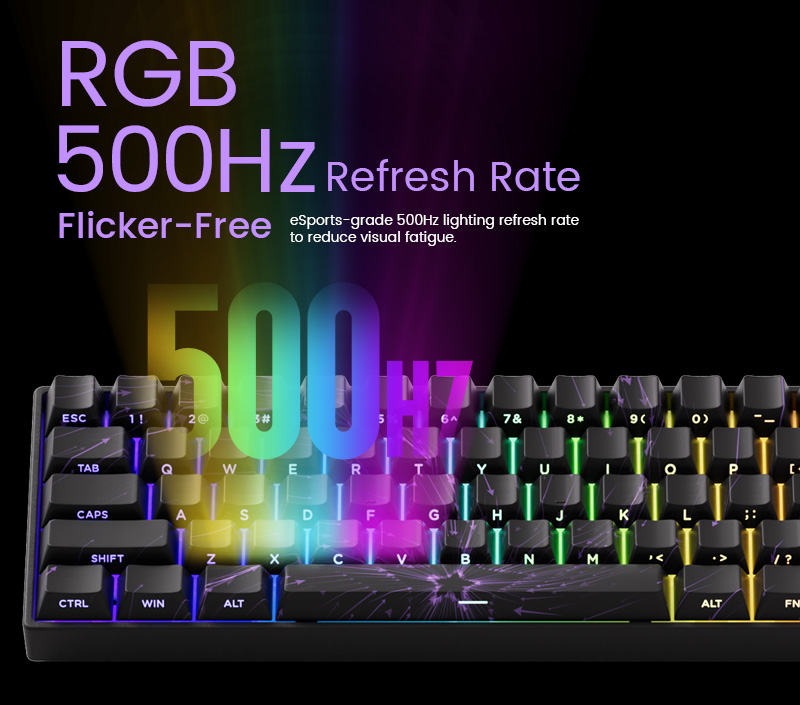
ARGB at a 500Hz Refresh Rate FUN60 Series features ARGB(addressable RGB) with individually controlled LEDs for smooth, flicker-free lighting. With Alpha channel integration and a 500Hz refresh rate, it offers richer dynamic effects and reduces visual fatigue—perfect for gaming and aesthetic builds. |
|
|
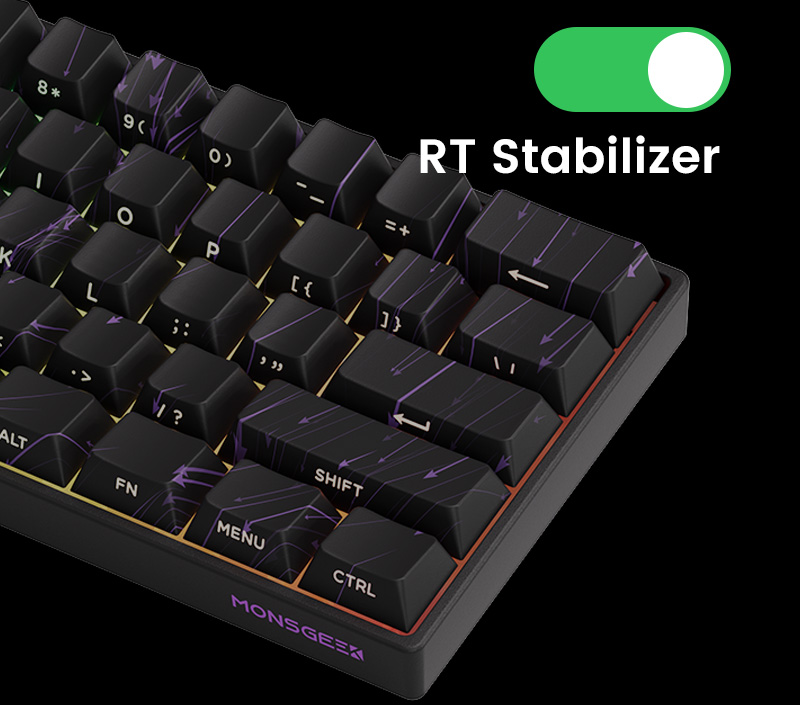
RT Stabilizer This “RT Stabilizer” mode is especially useful when set to a Rapid Trigger precision of 0.01mm, as magnetic switch keyboards may experience unintended inputs or disconnection from slight hand tremors, which can disrupt the overall gaming experience. It can be activated via the MonsGeek Driver with 4 different filtering levels. |
|
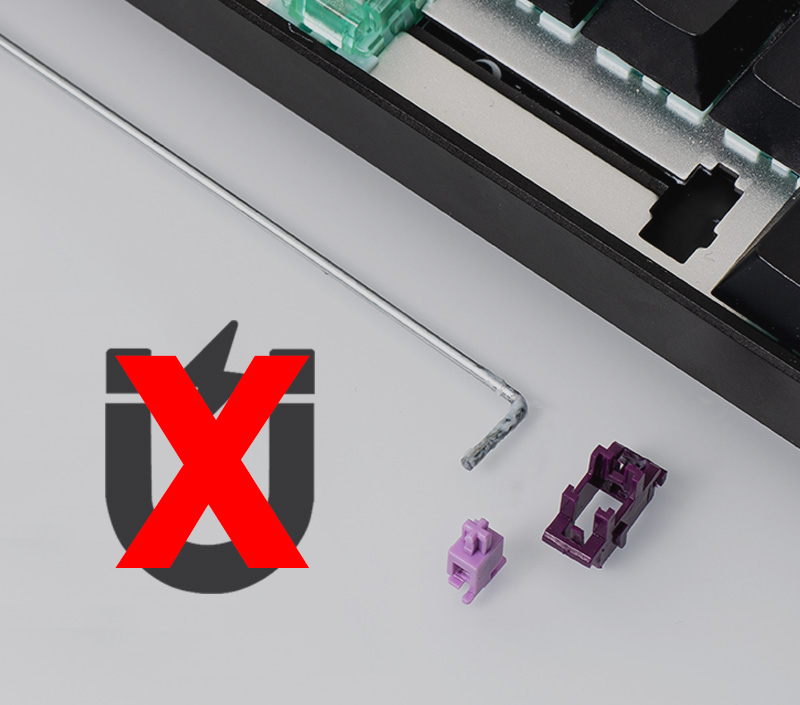
Demagnetized Stabilizer Compared to traditional mechanical keyboard stabilizers, the FUN60’s Stabilizer Wire is demagnetized, reducing magnetic interference, improving trigger accuracy, optimizing feel, and enhancing long-term stability—essential for precise and consistent performance in magnetic switch keyboards. |
|
|
Universal 8K Polling Rate With an 8000Hz polling rate for all keys in wired or 2.4Gwireless modes, enjoy ultra-fast response times and smoother, more precise inputs—perfect for gaming and high-performance tasks. |
|
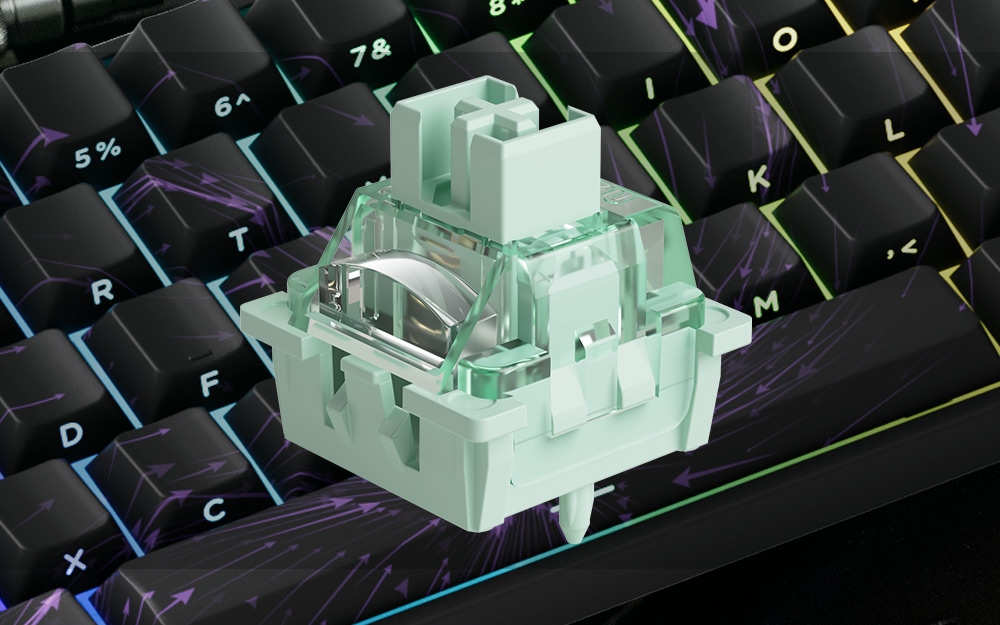
Akko Windy Magnetic Switch(without LED Diffuser) Akko Glare Magnetic Switch(with LED Diffuser) These switches comes with extra pins for stabilizing, reversed polarity, and closed bottom for a better sound profile. Total Travel: 3.4mm Operating Force: 25gf Min Actuation force at 2.0mm Travel: 40±5gf End Force: 48gf Max Initial Magnetic Flux: 95+15GS (PcB1.6mm) Bottom Magnetic Flux:589+50GS (PcB1.6mm) Top/Stem/Bottom: PC/POM/PC |
|
TMR takes precision to the next level. Users can mix and match magnetic switches and any 5-pin mechanical switches freely, like never before!

Imagining having only WASD / Arrow keys swapped for magnetic switches, and leave the rest for mechanical for a classic mechanical typing experiences. What a dream!
 Classic Features
|
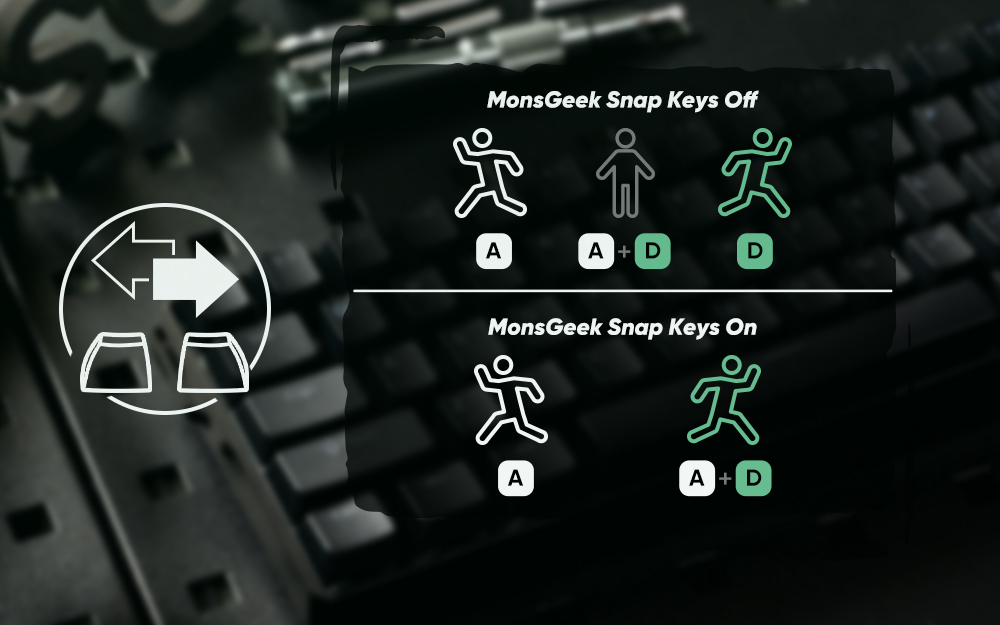
Snap Key Snap Key is MonsGeek’s implementation of SOCD, which prioritizes the most recent keypress for swift directional changes without releasing previous inputs. This ensures fluid and responsive control, especially in FPS games, where quick reactions and precise movements are crucial. |
|
|
Adjustable Actuation Distance These magnetic switches allow users to adjust every key’s actuation point from 0.1mm to 3.4mm, which offers different kinds of pressing for gaming or typing. |
|
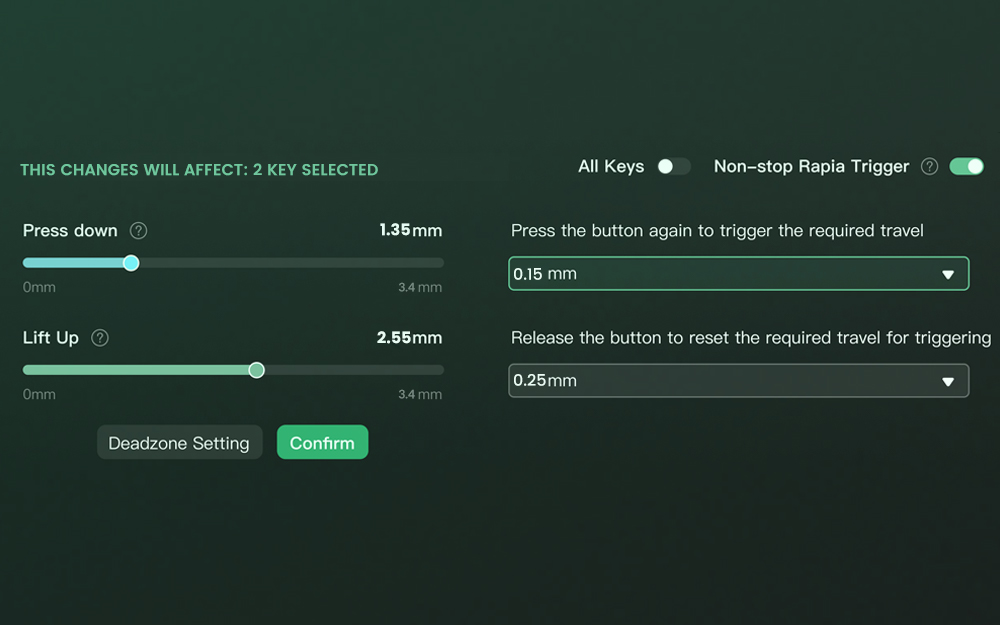
Rapid Trigger (RT) Rapid Trigger dynamically changes the keys’ actuation and deactivation points. Through the MonsGeek Driver, users can choose “All Buttons” or “Per Button” customization modes, as well as activate “Non-stop Rapid Trigger” for near-instant key response. This gives FPS gamers a competitive edge in fast-paced gameplay. For example, when gamers enable RT, they can achieve “Counter-Strafe“in VALORANT games. |
|
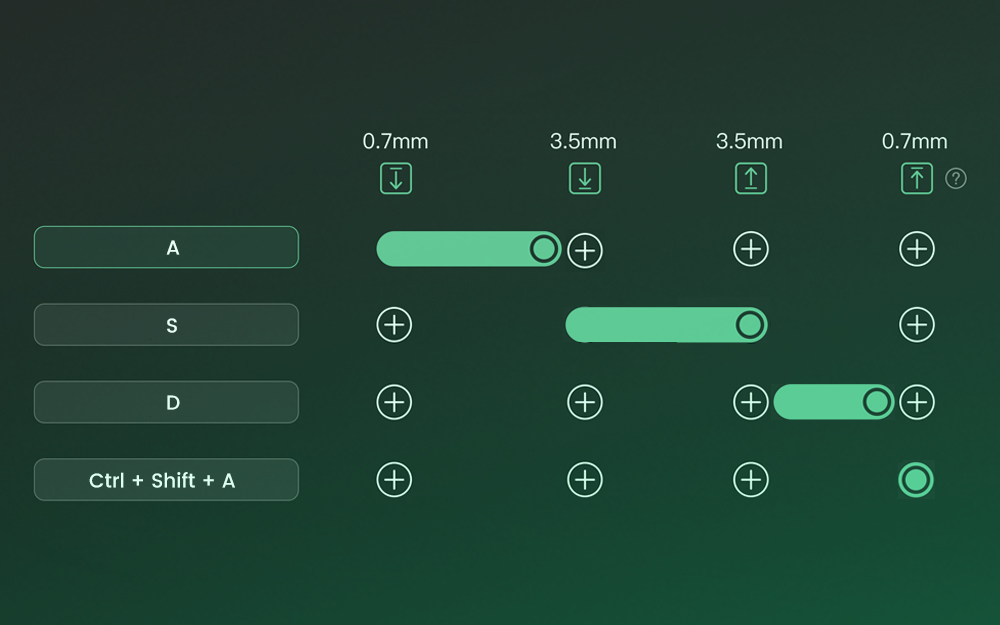
Dynamic Keystrokes (DKS) Pressing a key can trigger four different key operations. Depending on your keypress force: a light press triggers action 1, a deeper press activates action 2, and releasing the key also supports a two-stage key setting. |
|
|
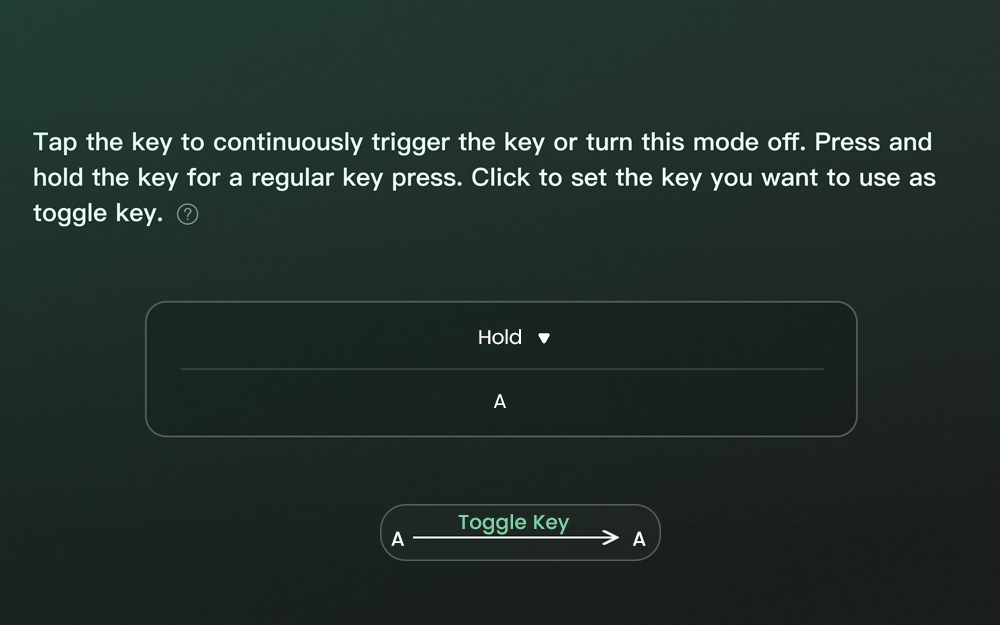
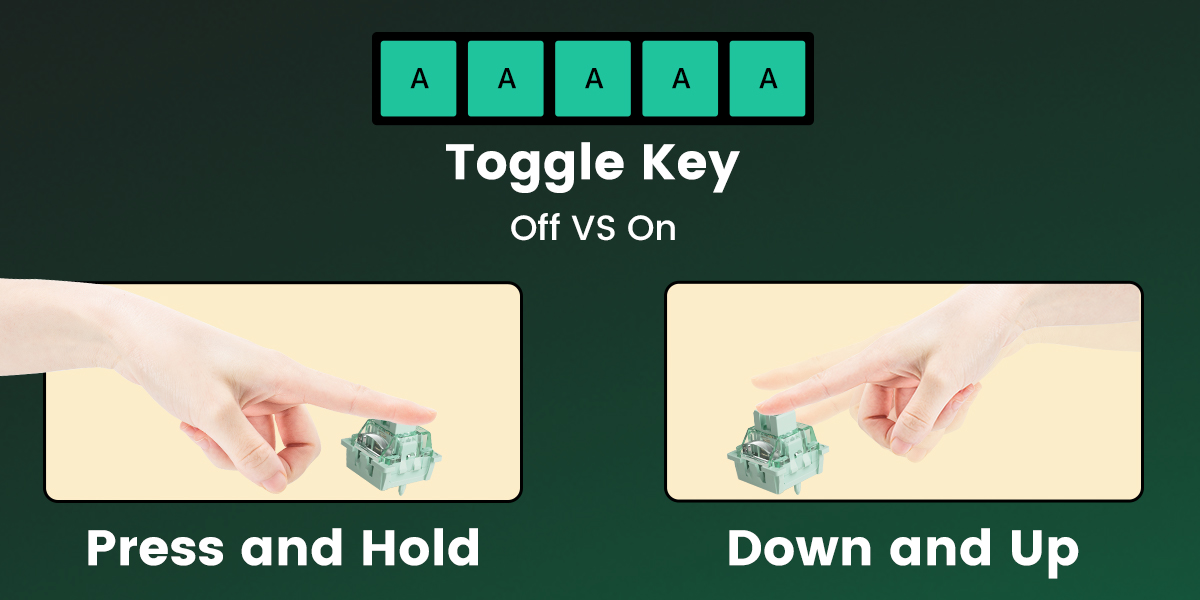
Toggle Key (TGL) TGL, or Toggle Key, transforms a key into a toggle switch. When you press this switch, you can activate one of two scenarios: either continuously hold down the key/function, or trigger the key/function multiple times at a high frequency. |
|
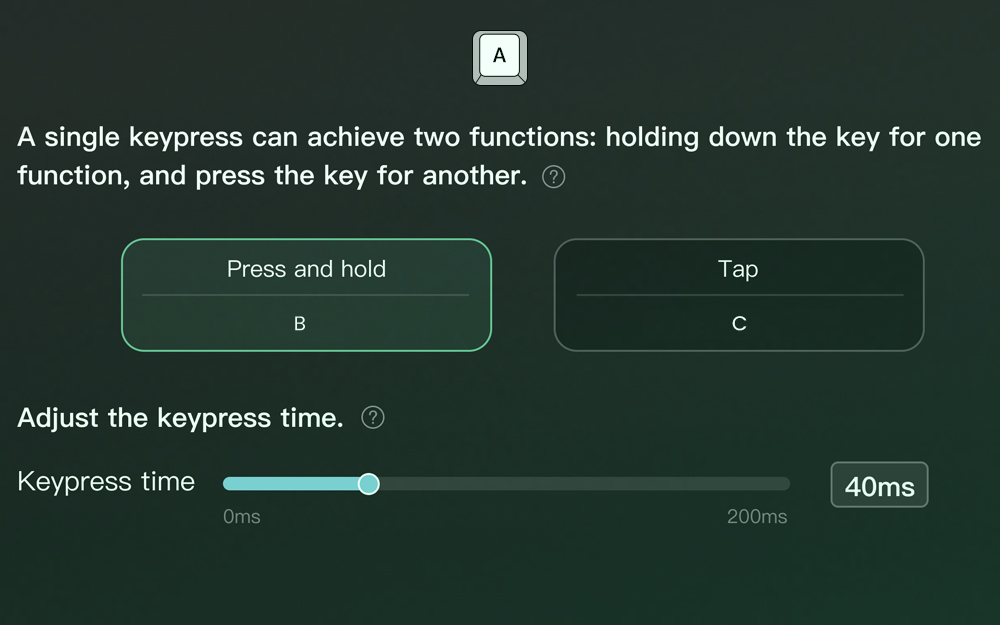
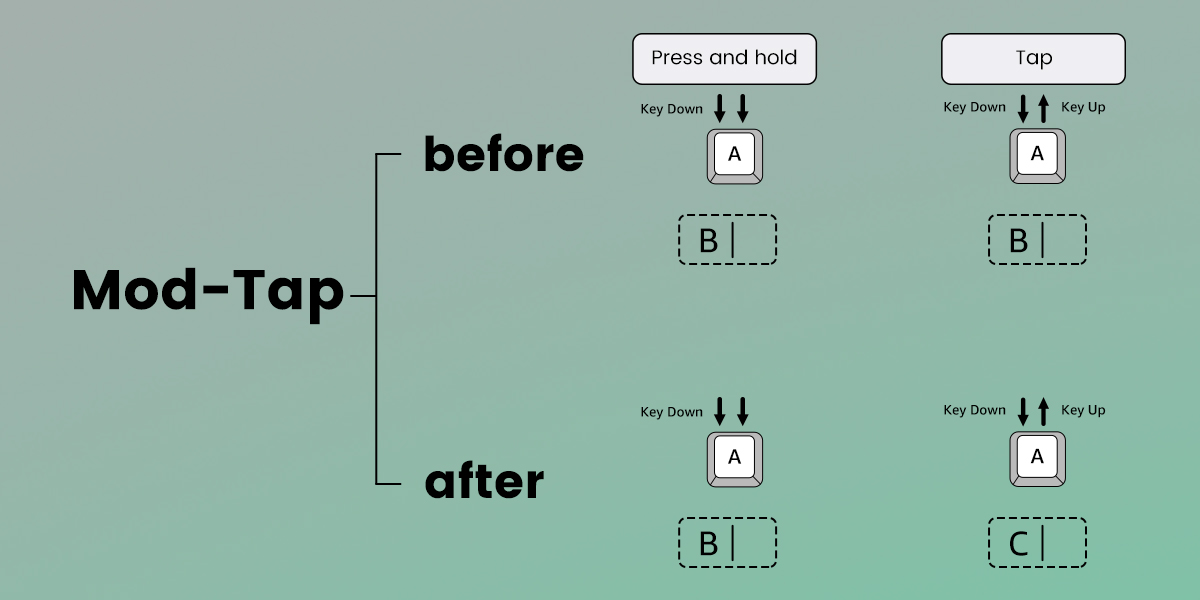
Mod-Tap Mod Tap is a design that provides convenience for gaming. It enables the creation of dedicated or dual-functional keys based on key press behavior. A single keypress can achieve two functions: holding down the key for one function, and press the key for another. |
|
 Web-based Online Driver(click here To web driver)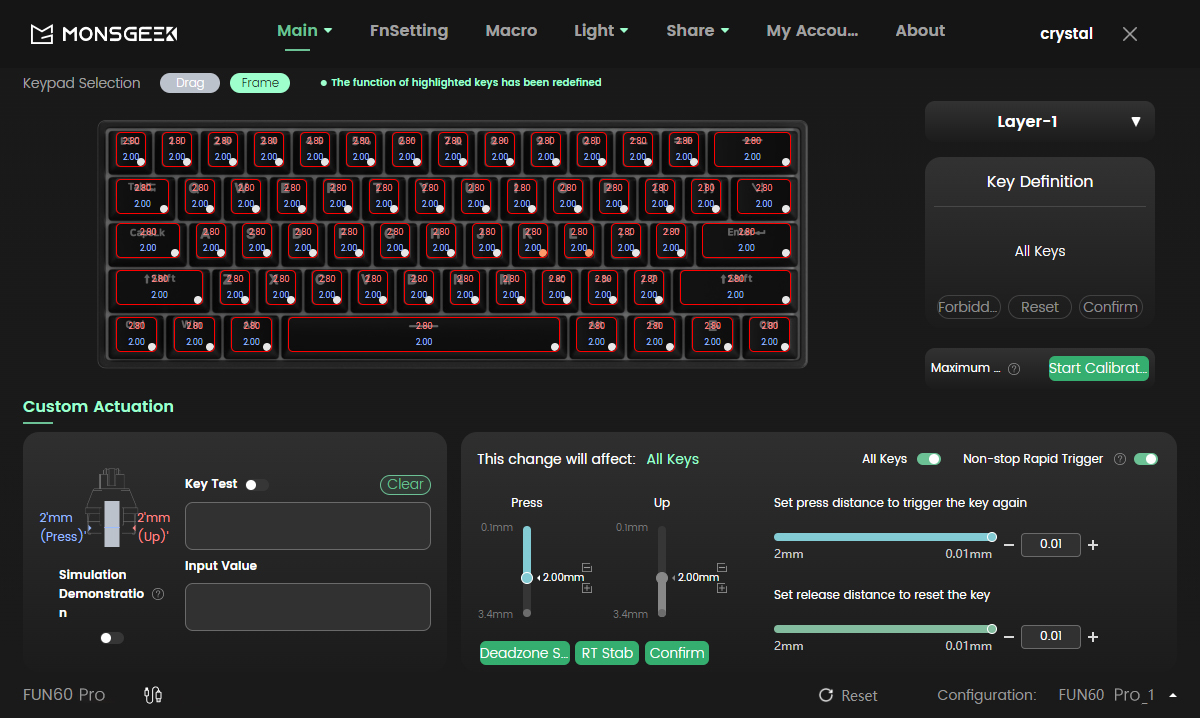
|
|
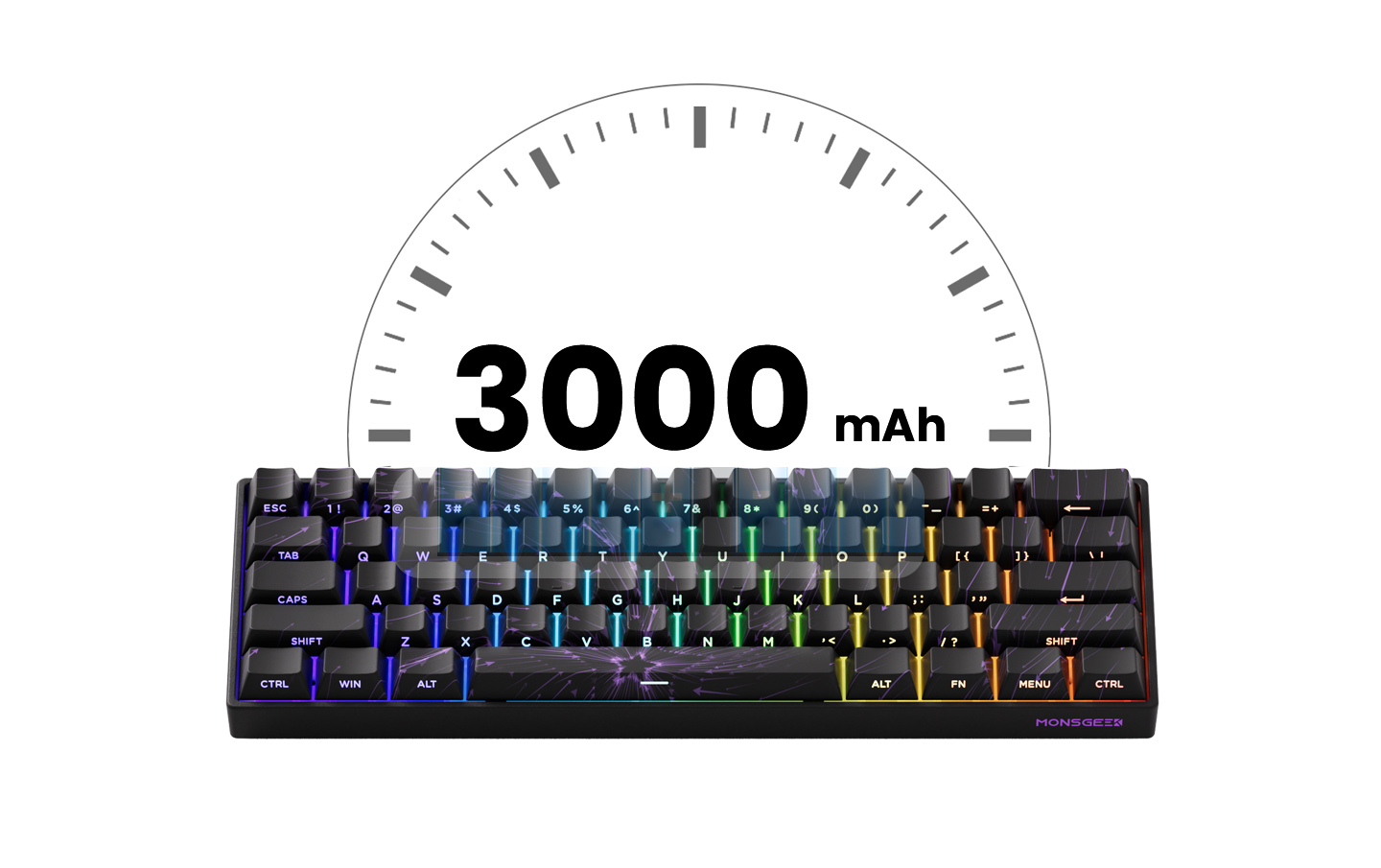
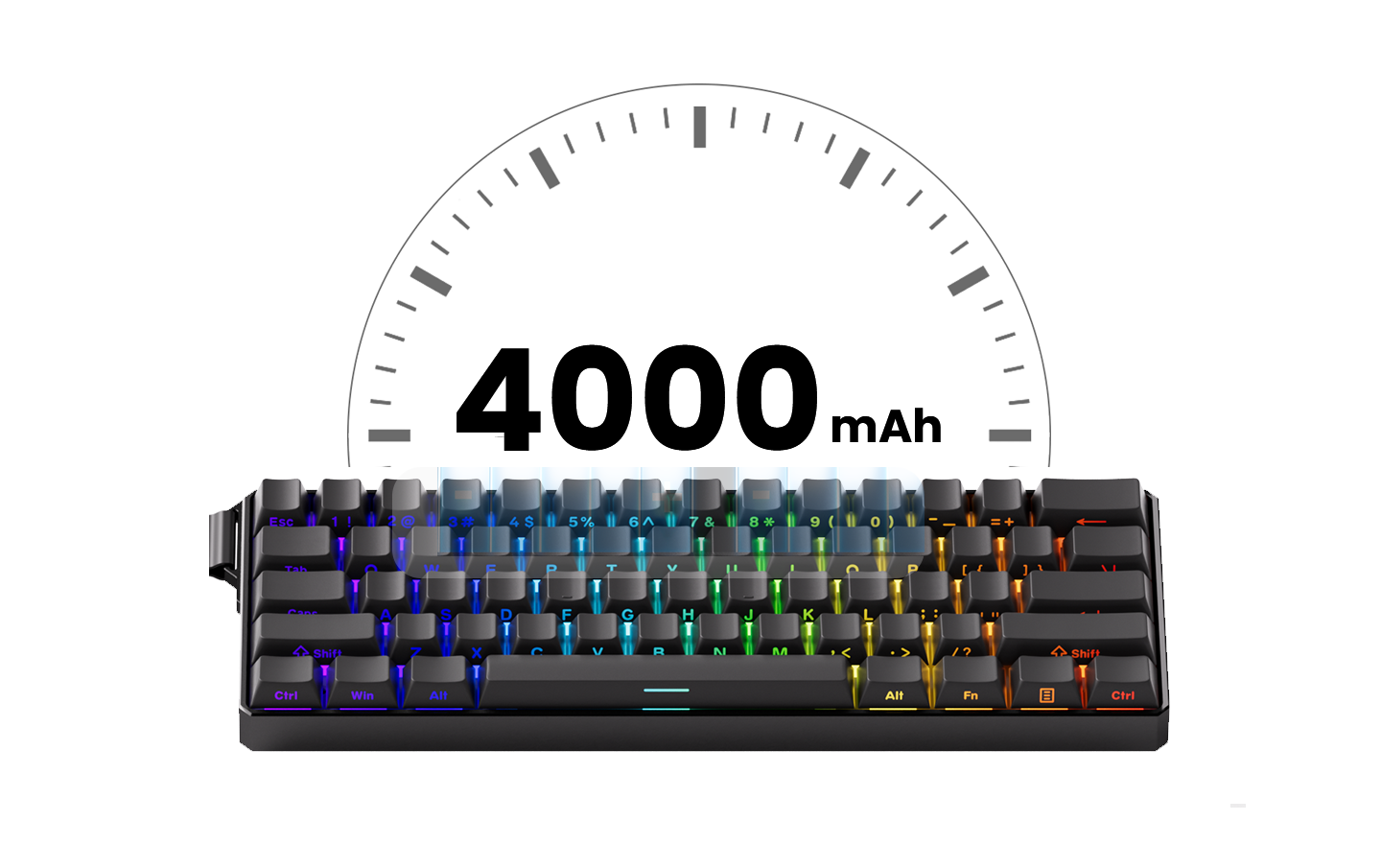
3000mAh/4000mAh Built-in Battery FUN60 Pro & Max Tri-mode Series features a 60% layout and is equipped with a 3000mAh built-in battery, providing extended, uninterrupted typing, gaming, or productivity without the need for frequent recharging. FUN60 Ultra Tri-mode Series is equipped with a 4000mAh built-in battery. |

2.4Ghz Wireless |
Bluetooth 5.0 |
USB-C Wired |
|
FUN60 is equipped with a receiver that allows users to utilize the 2.4GHz wireless mode, providing low latency suitable for gaming and typing purposes. |
FUN60 makes it easy to connect up to 3 devices with a simple Fn+E/R/T combination, enabling seamless switching between tablets, computers, and phones. |
FUN60 offers a choice for users who prefer a USB-C wired keyboard, ensuring consistent and rapid response times for FPS gaming and minimal input lag. |
✔️ Keys Remapping
FUN60 supports key remapping, which enhances customization, allowing users to optimize layouts for efficiency and comfort.
✔️RGB Backlight
FUN60 provides around 16 preset backlighting effects and customization with brightness and speed control.
✔️Tray-mounted
The tray-mounted structure provides better stability, reduced flex, and a more consistent typing experience.
✔️Aluminum Plate
The aluminum plate boosts durability, stability, and sound quality, while optimizing performance with magnetic switches.
✔️Lubed Stabilizers
FUN60 has lubed stabilizers that reduce rattle, enhance key stability, and deliver a smoother typing experience.

 FUN60Ultra-TMR Version


FUN60Ultra- HE Version


FUN60MAX-Nebula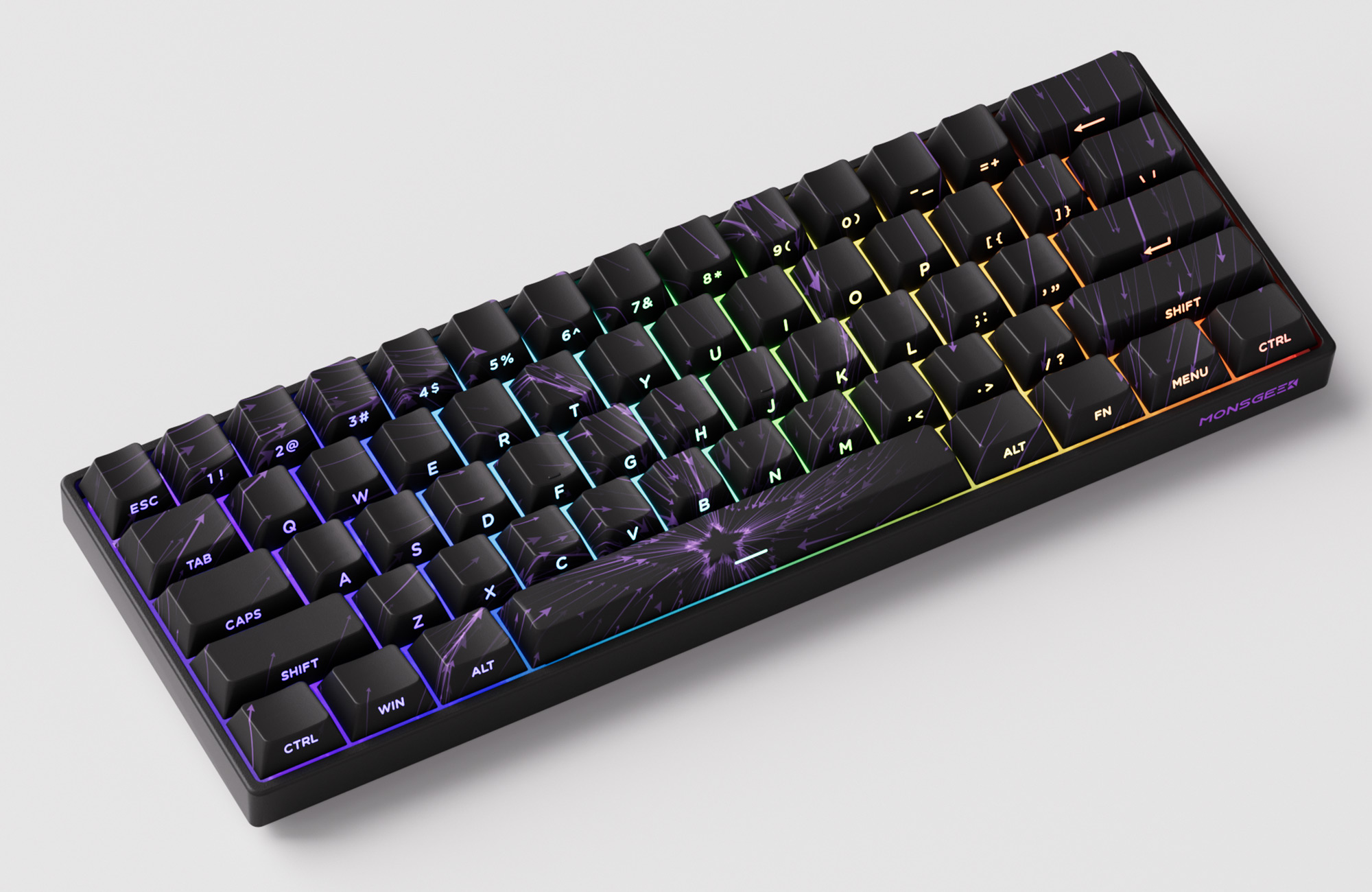

FUN60MAX/FUN60 Pro


FUN60
 FAQ for FUN60
Q1. What is the difference between Wired and Tri-mode?
A: Wired connection only supports USB Type-C wired connection; Tri-mode supports three connection modes: USB Type-C/2.4G wireless and Bluetooth wireless.
Q2. Why Does the Polling Rate Differ with Backlight On and Off in 2.4G Mode on FUN60?
A: In 2.4G mode, pressing Fn + L to turn off the lights activates the power-saving mode, reducing the polling rate to 100Hz.If you need 8K polling rate but want the lights off, use Fn +【(FUN 60) or Fn + Down Arrow (M1V5 TMR) to dim the brightness to the lowest level.
This method works for both FUN60 and M1 V5 TMR wireless models.For more information, please contact Akko official support: [email protected]
Q3.FUN60 double click and key not working issue: incorrect switch calibration and selection
A: If your FUN60 keyboard shows a double-clicking issue with the mechanical switches, it is likely due to incorrect switch calibration or selection.
In the switch selection interface, please ensure you mark and choose the correct switch type corresponding to your installation.Failure to select the correct switch may result in this double-click response issue. Please calibrate the keyboard after that.
Since the FUN60 keyboard supports a wide variety of mechanical switches, each switch type requires accurate identification to ensure optimal calibration and prevent input issues.
Please take care to differentiate and correctly label the switch type during setup to maintain proper progress and functionality.For more information, please contact Akko official support: [email protected]
Q4. About FUN60's 8K polling rate
A: We discovered that by quickly pressing with eight fingers together when "recording", every 8K keyboard we have (in normal non-RT mode) would stably show an 8000Hz polling rate result (of course, to measure the 8K polling rate, the binning rate must be set to 16000 as per the software's requirement).
Considering the customer experience, rather than just improving the test results, we are discussing internally whether to send more data to the computer. Our team is evaluating this, and we hope to receive more user feedback.For more information, please contact Akko official support: [email protected]
Q5.Does the keyboard support MAC?
A: FUN60 supports MAC/Windows systems, and can switch systems through the wave switch and shortcut key: Fn+O
Q6. About FUN60 ESC key RGB
A: The ESC key is a power indicator. When the power is low or charging, the ESC key will be red RGB. When the power is fully charged, the light will automatically turn off.
Q7. Does FUN60 include additional switches and ribbons?
A: Note: The FUN60 magnetic keyboard does not come with extra switches and keyboard ribbons.
Q8. About FUN60 Wired Connection
Please follow the steps below to make a wired connection
Connect the cable to the computer. Please set the toggle switch to USB mode. Then press the FnU shortcut key to establish a wired connection. When the red light flashes for 2 seconds, the connection is successful.
Q9. About the FUN60 2.4G wireless connection
Please use a USB 2.0 port to connect the 2.4G adapter.
1. Press the FNY keys to switch to 2.4G mode.
2. Press the FNY keys again for 3 seconds. After the receiver is inserted into the computer, the Y key flashes quickly.
3. The keyboard space bar is close to the receiver
First press the FNY keys; the Y key will flash quickly, then insert the receiver. It will flash again once the connection is successful. After that, the RGB light will remain on, indicating that the keyboard is successfully connected.
Q10. About the FUN60 Bluetooth connection
After turning on the keyboard, press FnERT to enter Bluetooth connection mode. Once pairing mode is active, pair the computer with the keyboard. When the ERT blue light flashes for two seconds, pairing is successful.
Q11. The keyboard double-clicks and some keys are not working
a. You can find the calibration button on the About page in MonsGeek Driver. Click the Calibrate button to start calibration.
b. Press Confirm to start.
c. During calibration, press each key all the way down with consistent force. Make sure every key is pressed and released during this step. Press the Confirm button after completing the calibration.
d. If any keys still do not function correctly, repeat the calibration process to ensure all keys work as expected.
Q12. Wireless Connection Notes:
a. Please connect only when the keyboard is fully charged. Low battery power may affect wireless connection quality.
b. Avoid connecting multiple devices simultaneously to prevent interference.
c. We recommend keeping the HDMI port and the 2.4G/Bluetooth device at least 5 cm apart (as far apart as possible) to avoid interference.
Q13. Web Driver Notes
1. The FUN60 requires the Chrome browser on Mac; the default Safari browser will not work. (If you have previously downloaded drivers for other models using Chrome, exit the "iot_driver" link in the upper-right corner and delete your cookies, then close the browser and reopen the driver page.) Some Windows browsers may not support the driver; try switching to another browser. For example, if Brave does not work, switching to Firefox may resolve the issue.
2. With a 2.4G connection, accessing the online driver on a Mac (and apparently on Windows as well) can be slow. The Mac may get stuck at 70% (we recommend reloading the page or, if you are using a USB adapter, unplugging any other USB devices from the adapter, or connecting directly to the computer with a cable). For better stability, please access the driver in wired mode.
3. When using 2.4G mode, use a USB 2.0 port.
If you have any other after-sales questions, please contact Akko official support and we will do our best to resolve them for you: [email protected]